
How to Navigate Listing Management : The Basics
 By Adrian
• 3 weeks ago
By Adrian
• 3 weeks ago What is it?
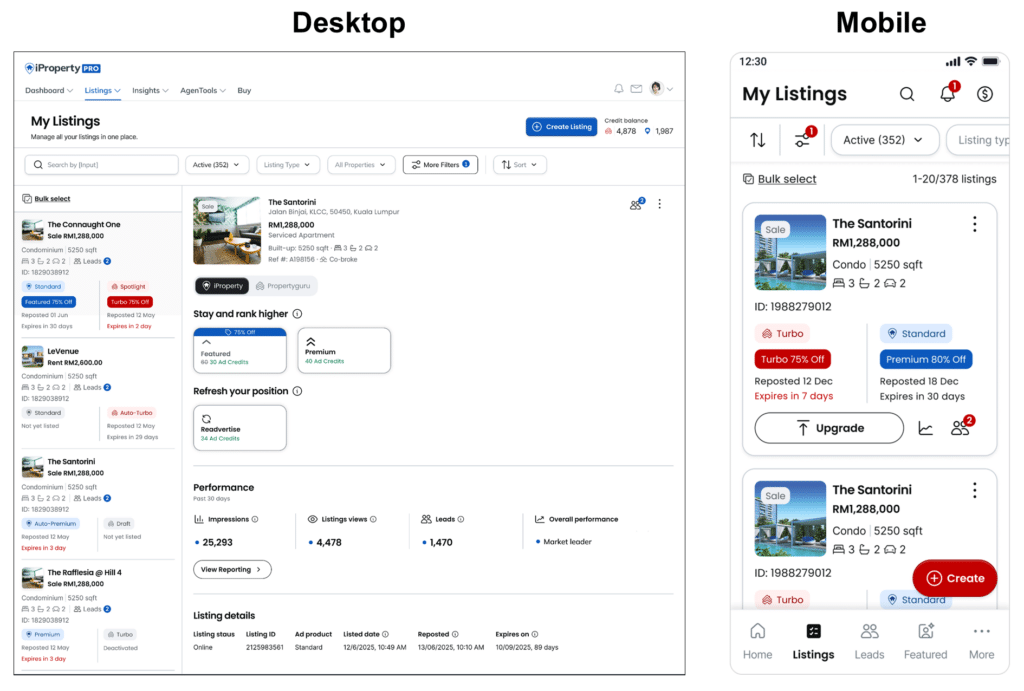
Updated Listing Management introduces a refreshed layout that provides a consistent Listing Management experience for agents using iProperty PRO and AgentNet (PropertyGuru). This update focuses on improving clarity and ease of use. While the layout has been refreshed, existing features remain unchanged.
What’s new at a glance.
-
- - A consistent Listing Management layout across iProperty PRO and AgentNet on web and mobile app
- - Clear listing tabs to organise your listings
- - Cleaner listing cards with key information shown upfront
- - Easier access to listing actions
- - Bulk actions for managing multiple listings
How to use Listing Management?
Where these options appear may vary slightly depending on whether you are on web or mobile, but the information and functionality remain the same.
Web & App Experience
-
- - Web: A wider view with clearer navigation for managing large numbers of listings
- - App: A card-based layout optimised for quick checks and actions while on the go
Listing tabs
Your listings are organised into tabs so you can quickly find what you need:
-
- -Active - Listings that are currently live
- -Draft - Listings that are not yet published
- -Past - Listings that have expired or are offline
- -Suspended - Listings suspended due to policy reasons
The default view shows your Active listings.
Search and filter listings
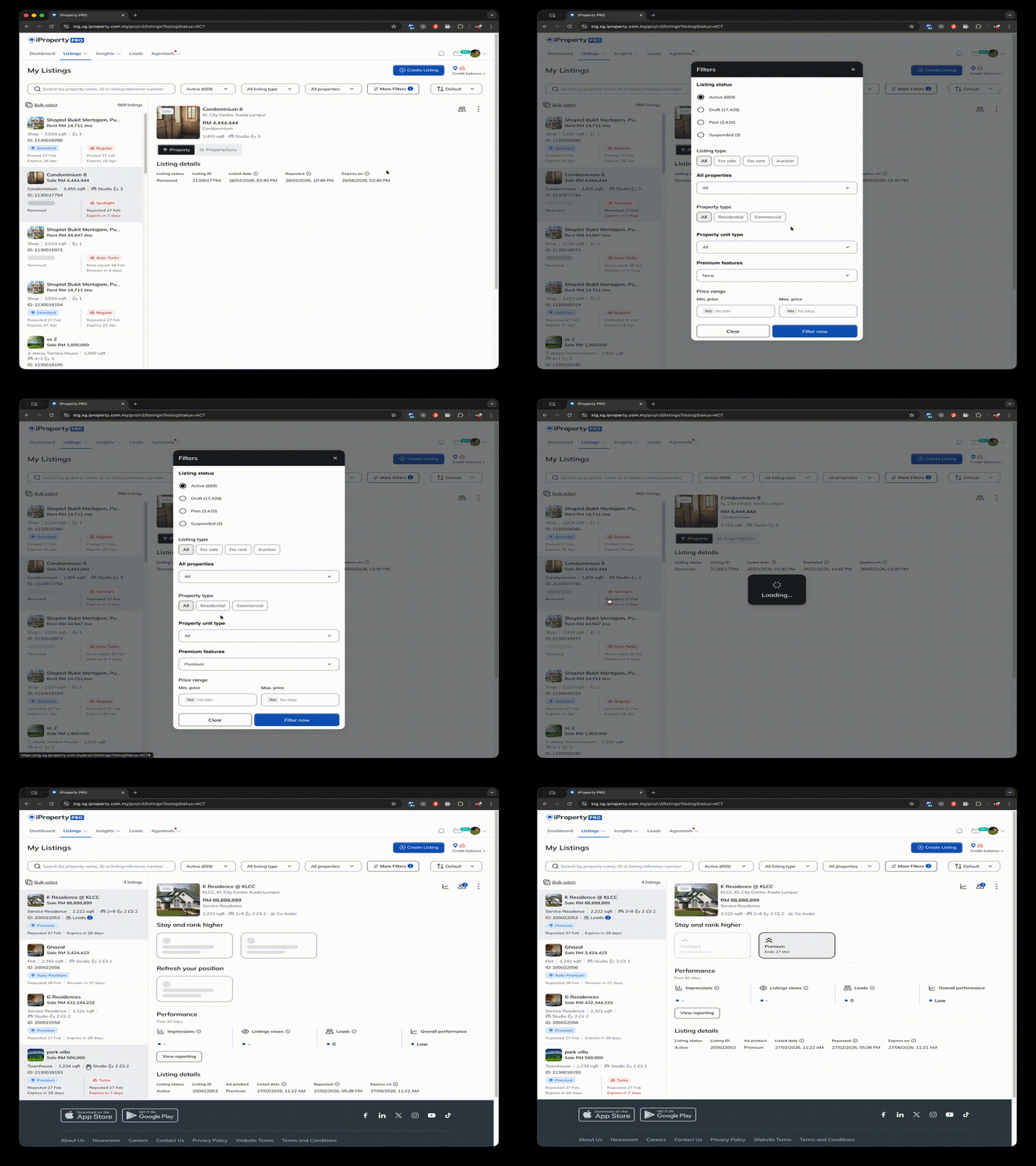
Use search and filters to quickly locate specific listings.
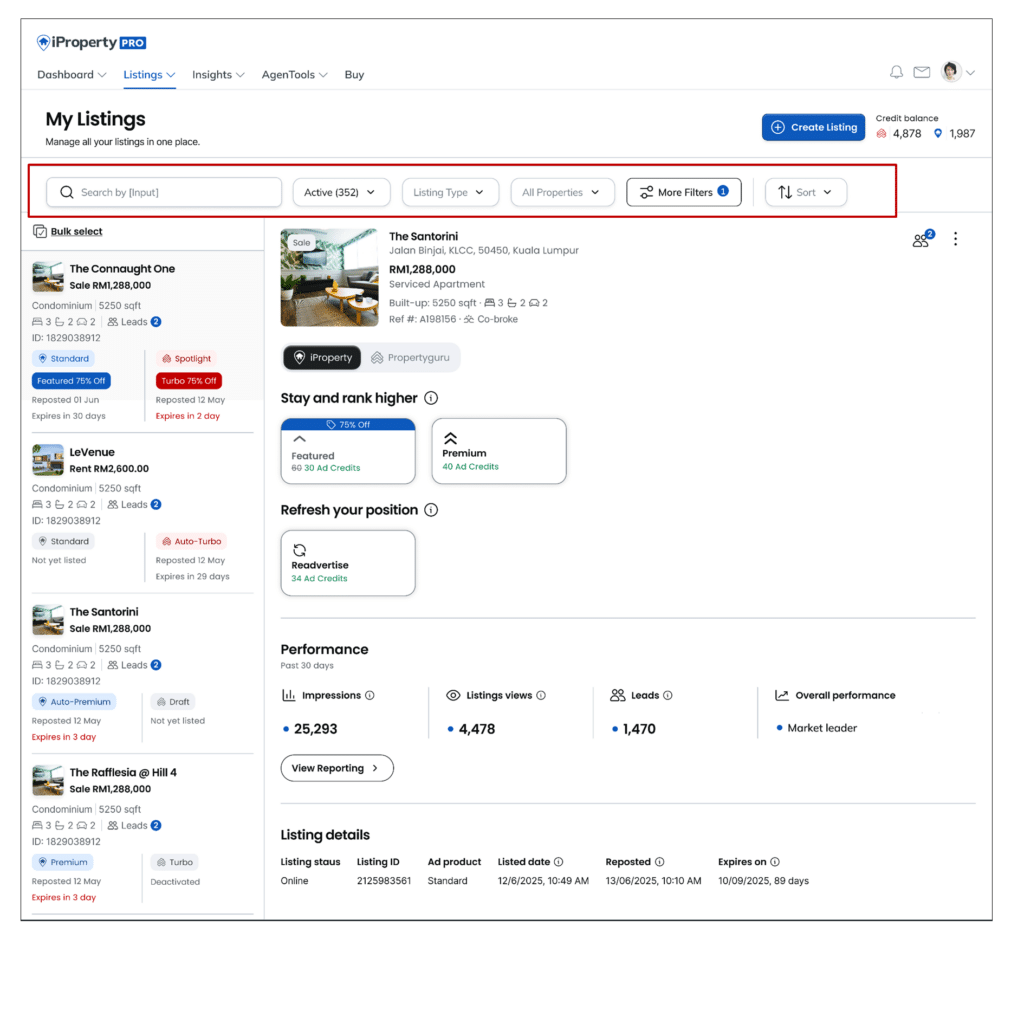
You can search by listing ID, property name, reference number.
Use the filter options to quickly filter through Ad Products, Property Type & others.

Listing cards
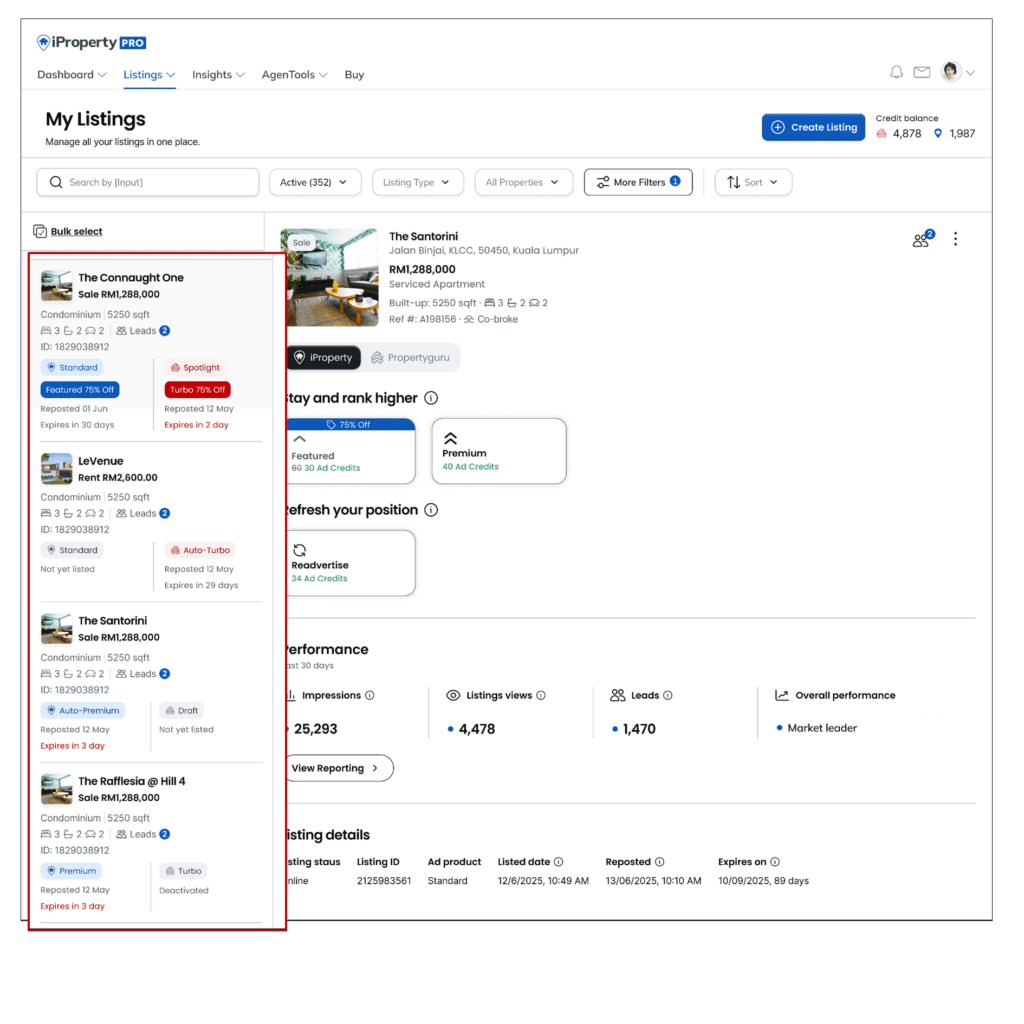
Each listing appears as a card showing key information such as price, property type, bedrooms and expiry details. The information and actions displayed may vary depending on the listing status (for example, Active or Draft), so you only see what’s relevant.
Manage a listing
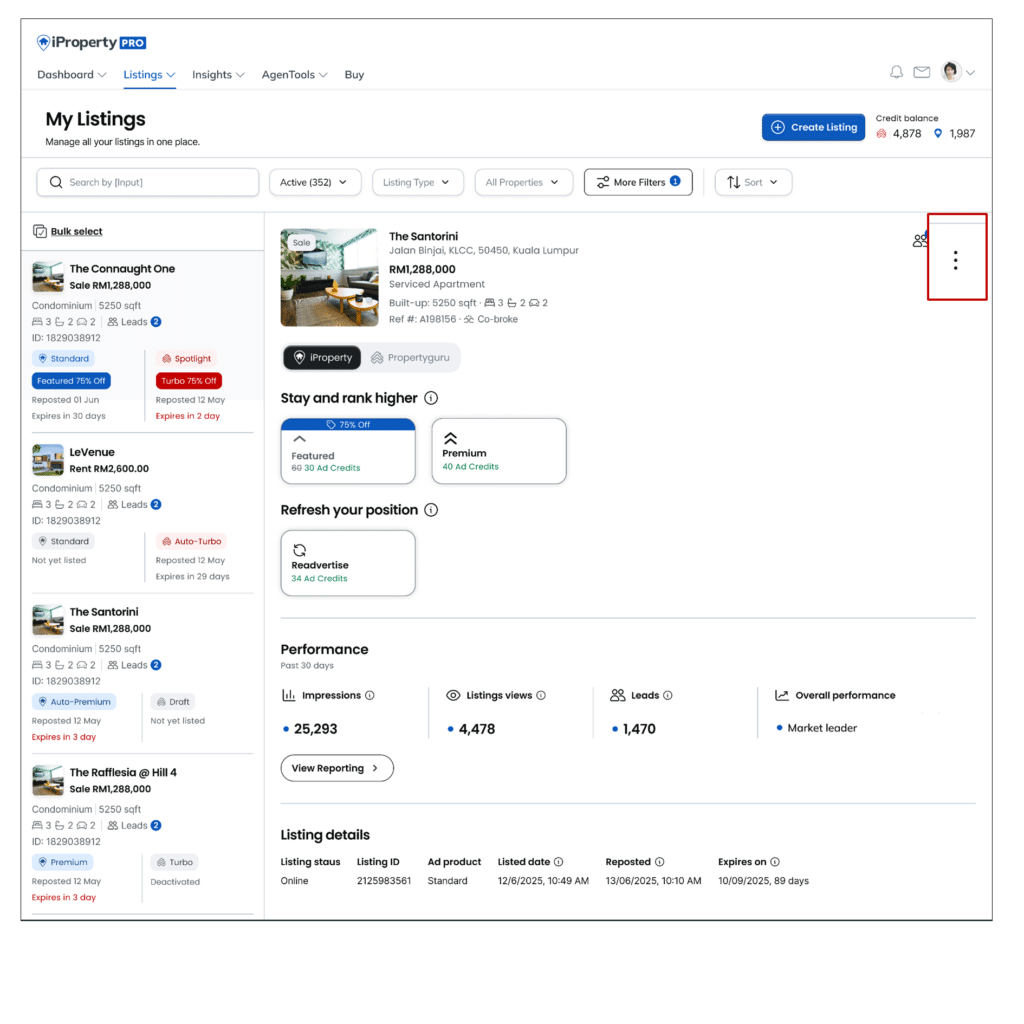
Click on a listing or use the three-dot menu on the top right in a listing card to access actions such as:
-
- - Preview listing
- - Change listing status
- - Deactivate listing
- - Extend expiry (where applicable)
- -Duplicate a listing
- -Edit a listing
Duplicate a listing
Create a new listing by copying an existing one, allowing you to retain key details such as description, photos and info. Click the three-dot menu & Duplicate Listing in a listing detail card.
Edit a listing
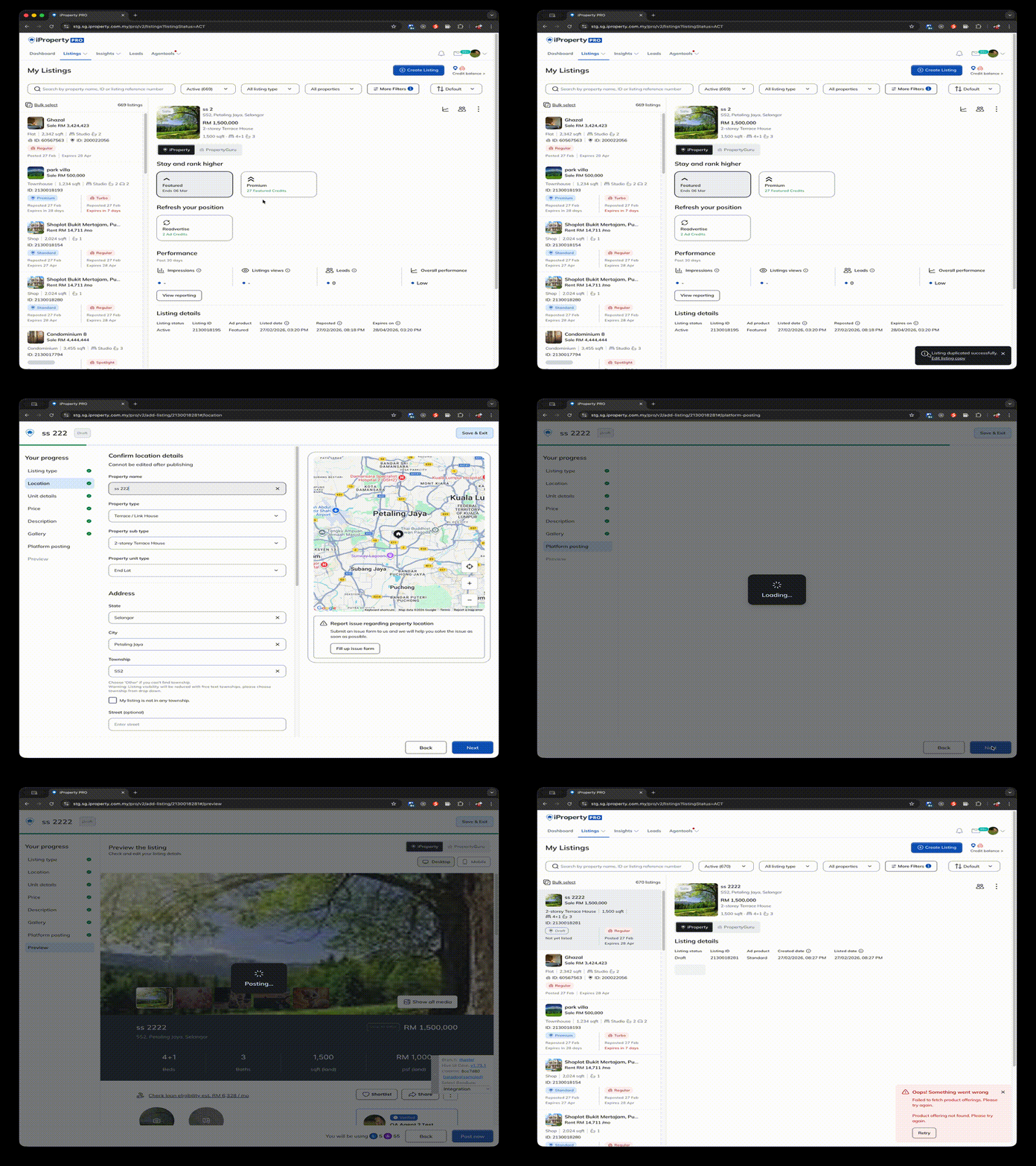
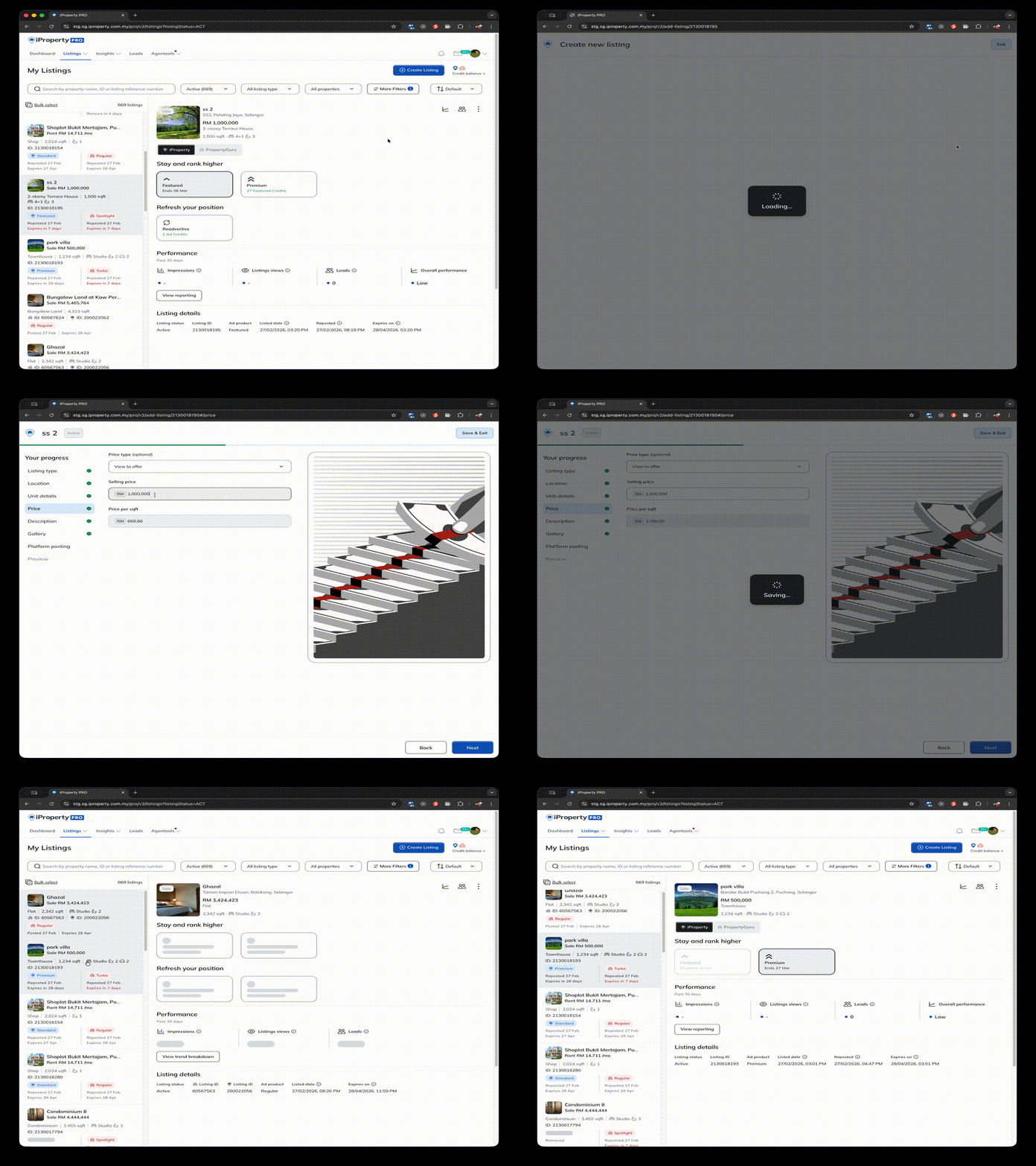
Update necessary details before saving a listing. Click the three-dot menu & Edit in a listing detail card.
Bulk actions
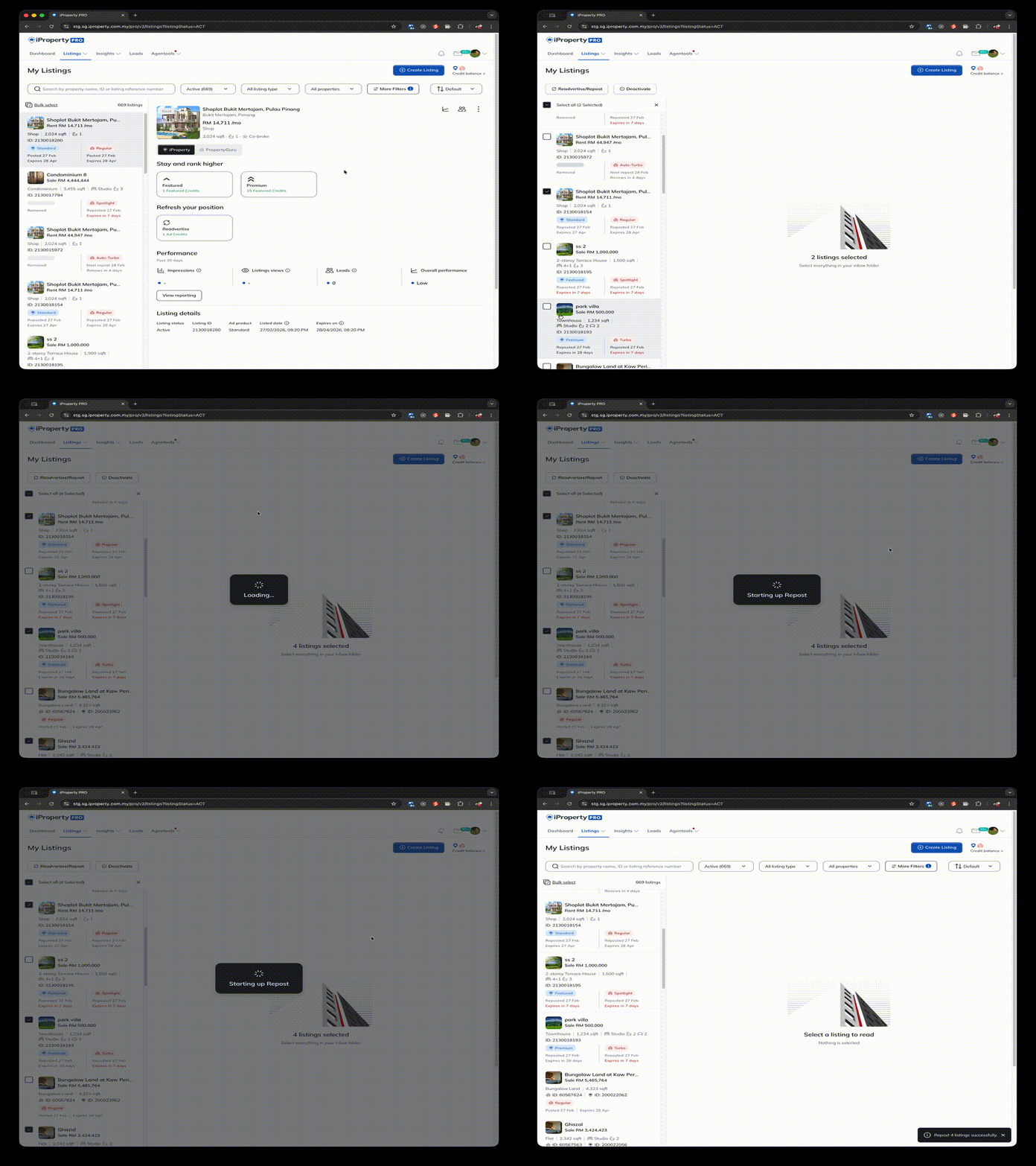
You can select multiple listings at once to perform bulk actions such as reposting/readvertising.
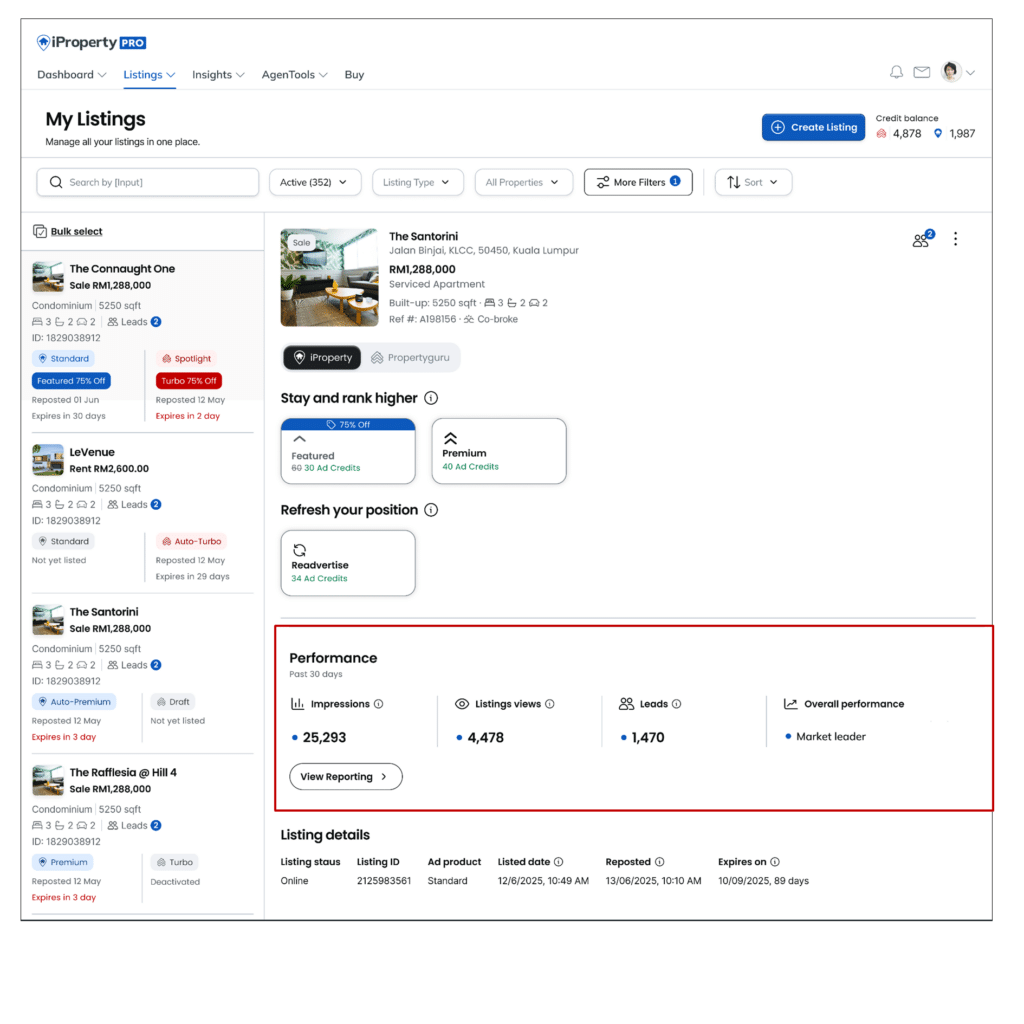
Listing Performance Insights
Performance insights such as views and engagement are available to help you track how your listings are performing.
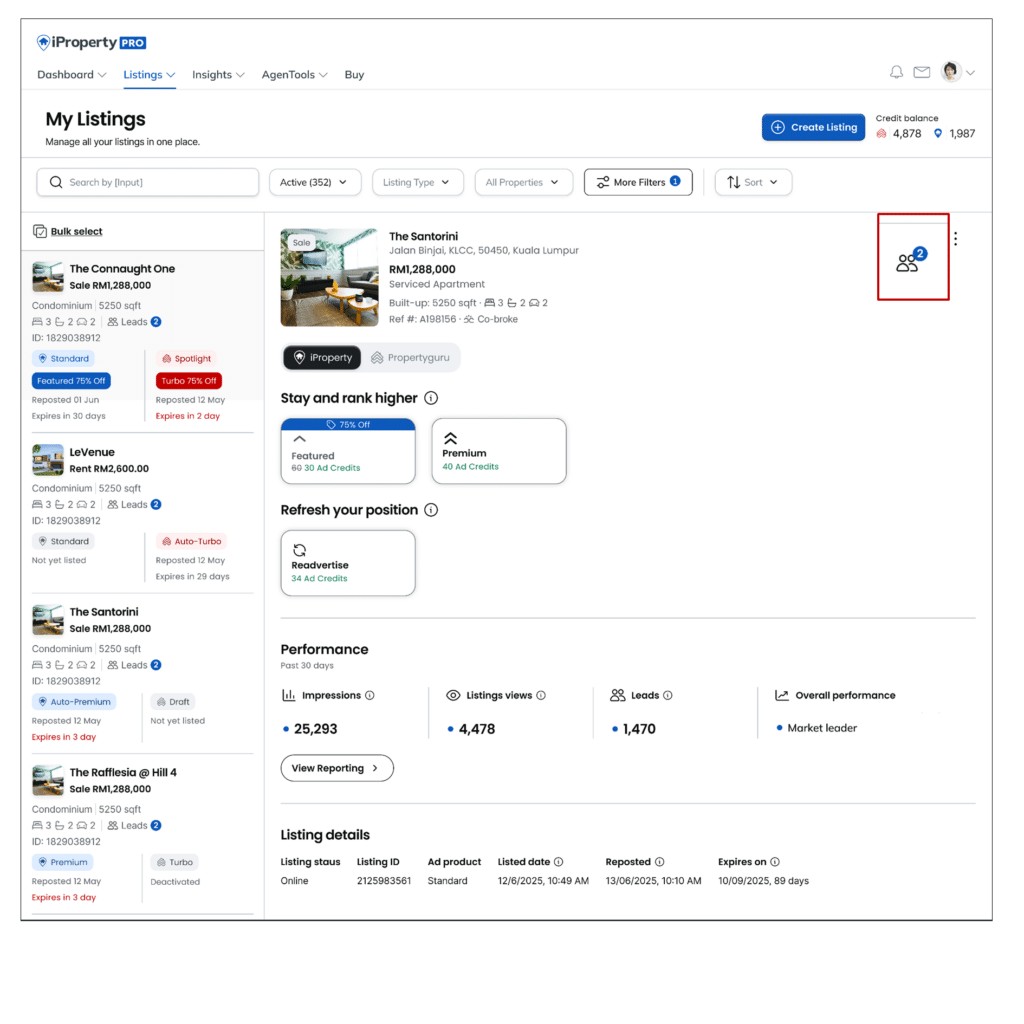
Leads
Tap the leads icon to view leads through Lead Management.
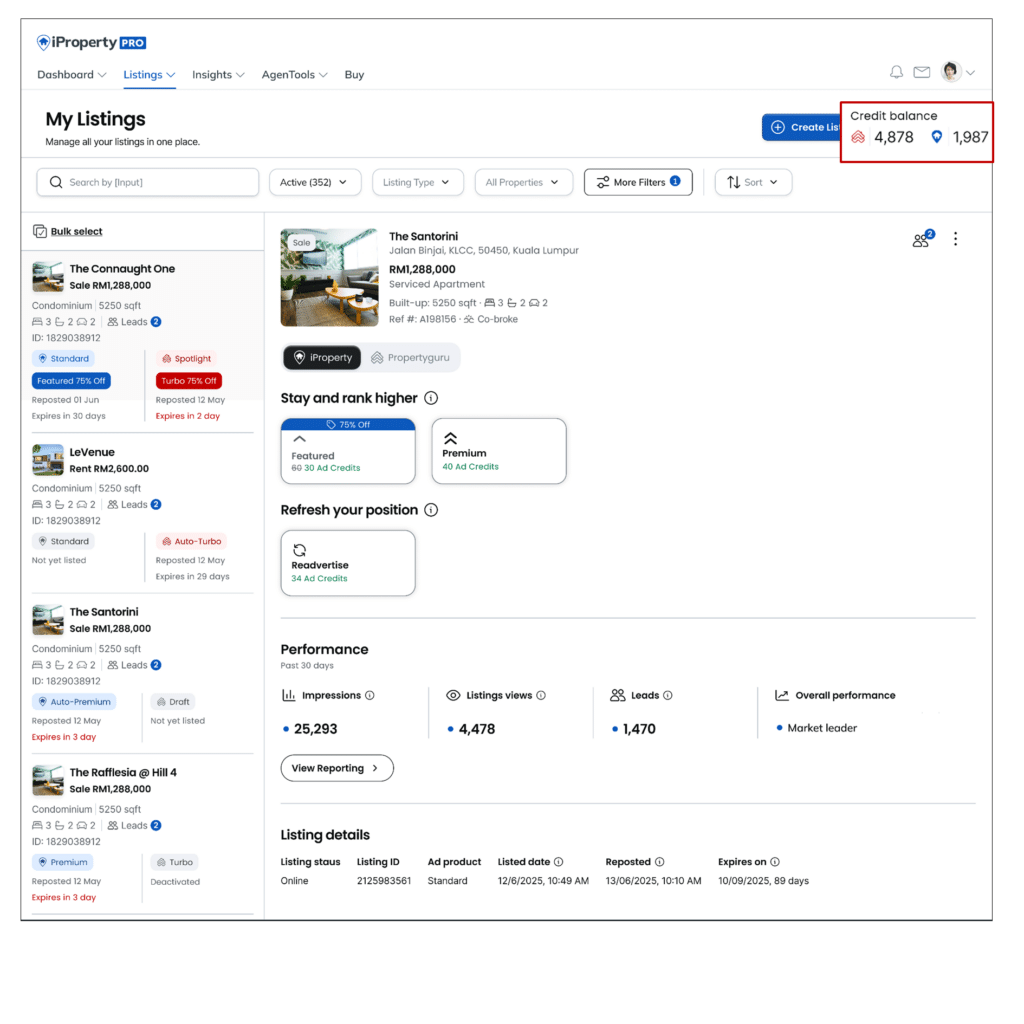
Credit Balance
You can view your remaining credits within Listing Management. Upgrading or reposting listings will continue to deduct credits as usual.
For common questions about the updated layout, view our Frequently Asked Questions article.
For general enquiries, please reach out to our Customer Service at the following:
Phone: +603 6419 5188 (Mon - Fri 9am - 6pm, closed on PH)
Email: customercare@iproperty.com.my
For technical assistance, please message us via WhatsApp at +60 17 943 9107
(Mon - Fri 9am - 9pm, closed on PH) (no phone call, message only) and we will get back to you within 1 working day.